
Markdown → PDF
How to convert
Three steps. No signup, no email, no cloud locker.
- 1
Paste or upload
Drop your Markdown or MDX file into the editor, paste source directly, or click Upload to load a file from disk.
- 2
Choose format and theme
Pick PDF, DOCX (Word), or HTML as the output format. Optionally switch to Academic for a cover page or README/Blog for GitHub-style typography.
- 3
Convert and download
Click Convert & Download. The file streams back as a real binary — no signup, no email, no cloud locker. Your source is never stored.
Why this converter
Built for the docz.me invoicing app — released as a free standalone because the underlying pipeline turned out to be useful on its own.
Server-side rendering, real binaries
Output is a real PDF, real DOCX, or self-contained HTML — not a screenshot or rebadged HTML. Selectable text, embedded fonts, proper page breaks.
GFM and MDX in the same pipeline
Tables, task lists, footnotes, autolinks parse like GitHub. Switch to MDX input for Callout / CodeBlock / Tabs / Steps components — all rendered statically.
Three themes, one source
Default for clean modern docs, Academic with cover page and numbered headings, README/Blog for GitHub typography. Switch and re-render — keep your source.
Privacy first
Stateless serverless function. Source text is never logged or persisted. 500 KB cap enforced before parse so the worst case is a friendly error.
MDX without the JS-execution risk
Parse-only path. JSX expressions, ESM imports, and unknown components are rejected by design. No code from your source ever runs server-side.
No signup, no email gate
Free, anonymous, ungated. Built by docz.me — the invoicing app for freelancers — but the converter stands alone with no account requirement.
PDF is the format people actually share. Whether it's a thesis chapter, an invoice draft, or a README export for a portfolio, a clean PDF reads better than a screenshot. This converter renders server-side with `@react-pdf/renderer`, so what comes out is a real PDF — selectable text, embedded fonts, proper page breaks — not a rasterised HTML print.
The pipeline handles the parts other Markdown-to-PDF tools quietly skip: nested lists with proper indentation (the @react-pdf depth-tracking gotcha is solved), blockquotes inside list items, fenced code blocks with monospace shading, and inline strong/em that doesn't break across runs. GFM tables ship as DOCX-only in v1 — the PDF path emits a styled fallback note so the data isn't lost, but you'll see real layout in the DOCX output.
Theme matters more than people think. Academic theme prints a centered title page with the date, then numbered h1–h3 headings throughout. README/Blog leans on GitHub typography conventions and higher-contrast code blocks. Default is the clean middle path. All three drive the same source file — convert once, keep the source, regenerate any time you need a different look.
Edge cases the pipeline gets right
Nested lists are the classic Markdown-to-PDF break point. Most converters render second- or third-level items at the same indent as their parents — readable in HTML, indistinguishable in print. Our depth tracker carries indent through arbitrary nesting and applies the theme's spacing tokens so a five-level outline still reads as a hierarchy when rendered. Blockquotes inside list items keep their left-border treatment, and the surrounding list-item indent doesn't double up.
Fenced code blocks render with a light shaded background and a monospaced font that survives copy-paste from the PDF — no curly-quote surprises when the recipient lifts a snippet into their terminal. Inline code spans get the same treatment at run-level. Combined bold + italic text keeps both styles across line wraps; many libraries silently drop one when the run breaks. Hyperlinks render as underlined navy text and stay clickable in any modern PDF reader.
GFM tables in PDF output ship as a styled fallback block — the source markdown is preserved verbatim inside a bordered container so the data isn't lost, but pixel-precise table layout in PDF lives on the roadmap once @react-pdf table primitives stabilise. If your document leans on tables, run the same source through the DOCX export to get native Word tables, or through the HTML export to get real table markup. One source file, three formats — pick the format whose tables match your downstream tool.
How it compares
Markdown to PDF stacked against the alternatives most folks reach for. Honest framing — Pandoc and the platform tools are powerful in ways we're not.
| Feature | docz.me | Pandoc | Word Save-as-PDF | Browser print | npm markdown-pdf |
|---|---|---|---|---|---|
| Selectable PDF text | Yes — real PDF via @react-pdf | Yes | Yes | Yes | Yes (Puppeteer) |
| Multiple themes | 3 (Default / Academic / Blog) | Via custom LaTeX template | Whatever Word looks like | Site CSS | Bring your own CSS |
| Setup | None — paste & download | Install + LaTeX for nice output | Word license | Render markdown first | Node + Chromium |
| GFM tables | Fallback in v1 (DOCX has native) | Native LaTeX tables | Word tables | HTML tables | HTML tables |
| Privacy | Stateless, source not logged | 100% local | 100% local | 100% local | 100% local |
Example source
Copy and run through the converter to see the output match the described behavior — every example below is a real fixture.
# Engineering Update

## Highlights

1. Migrated to React 19
   1. Removed legacy lifecycle hooks
   2. Confirmed Suspense boundaries hold
2. Shipped Markdown-to-PDF converter
   - Three themes
   - Server-side render

> Renders a five-level outline without flattening the indent.

```ts
const report = await convert({ format: 'pdf', theme: 'academic' });
```Honest comparison vs Pandoc
Pandoc is the reference implementation for document conversion. It is genuinely better than us at several things, and we are better at a few. Pick by what you actually need —Pandoc lives here ↗.
Where docz.me wins
- Zero install — paste markdown, click convert, get a real PDF in your downloads folder.
- Three opinionated themes that look right out of the box; no LaTeX templates to author and debug.
- Stateless serverless function with explicit privacy posture — your source isn't logged or persisted.
Where Pandoc wins
- Pandoc supports far more input formats (LaTeX, RST, DocBook, ePub) and output targets (man pages, EPUB, slide decks).
- Pandoc + LaTeX produces academically polished PDFs with native cross-references, BibTeX citations, and full PDF/A-3 archival output we don't approach.
- Pandoc runs offline and integrates into shell pipelines and CI; this converter is online-only and aimed at one-shot conversions.
Theme showcase
Three opinionated themes drive every output format from the same source. Pick the one that matches the deliverable's audience.
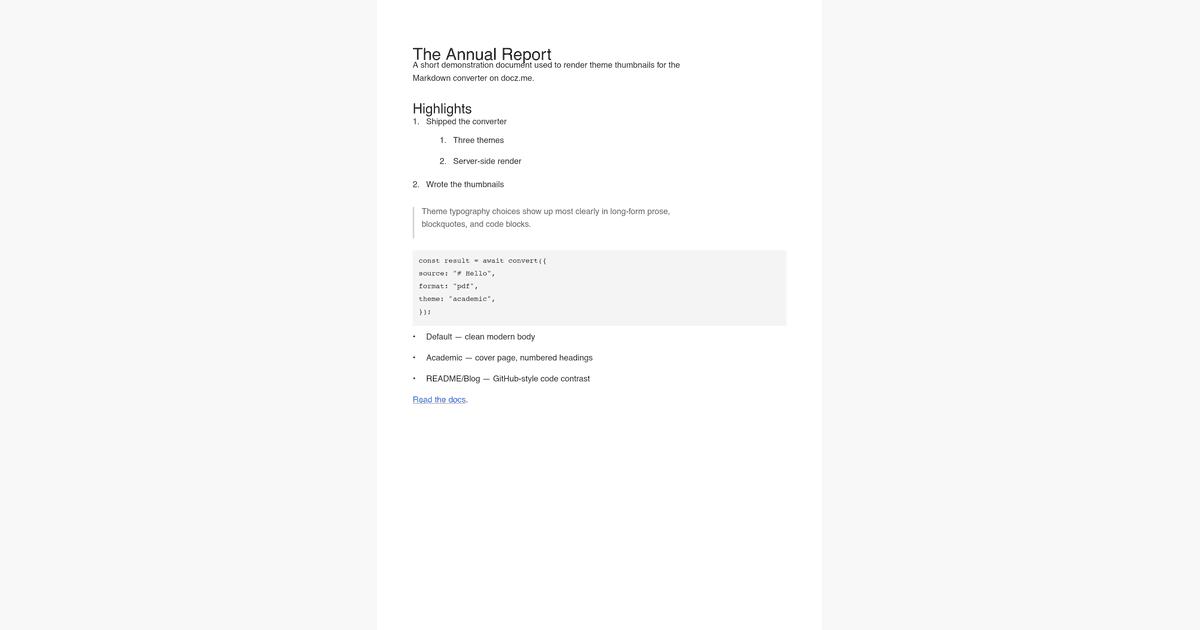
default
Clean modern body text, neutral headings, light grey code shading. The right pick for project briefs, freelance proposals, and meeting notes — anywhere the brief is to look polished without making a statement.
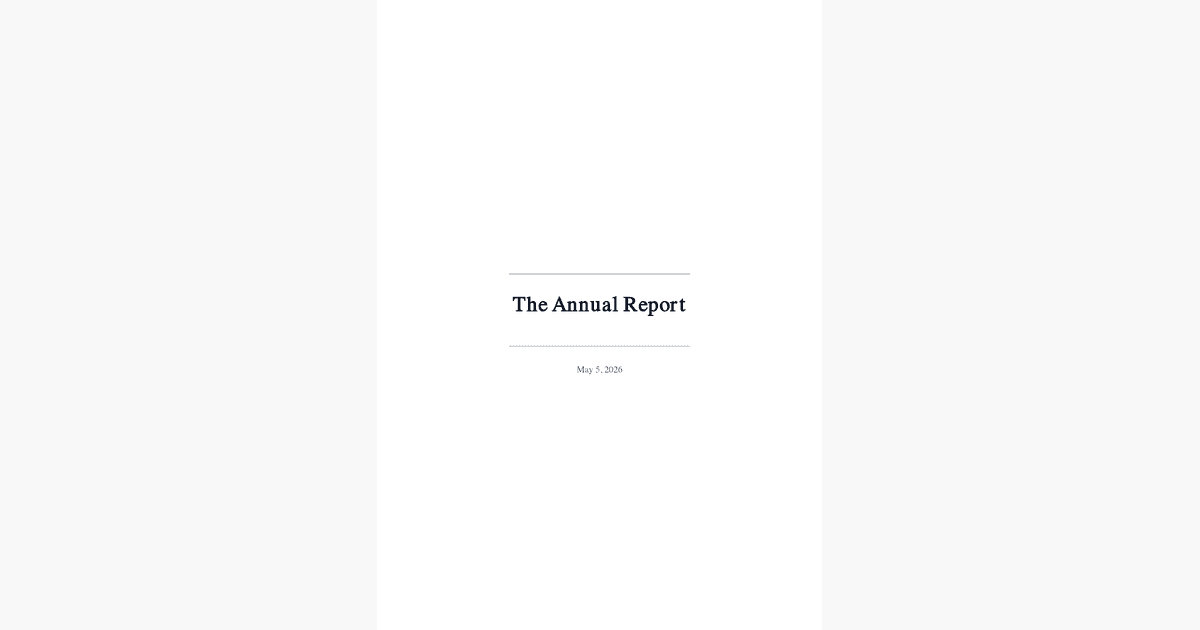
academic
Centered title page with date, then numbered h1–h3 throughout. Serif body for long-form prose, justified text. Pairs well with thesis chapters, white papers, and reports headed for a printed binding.
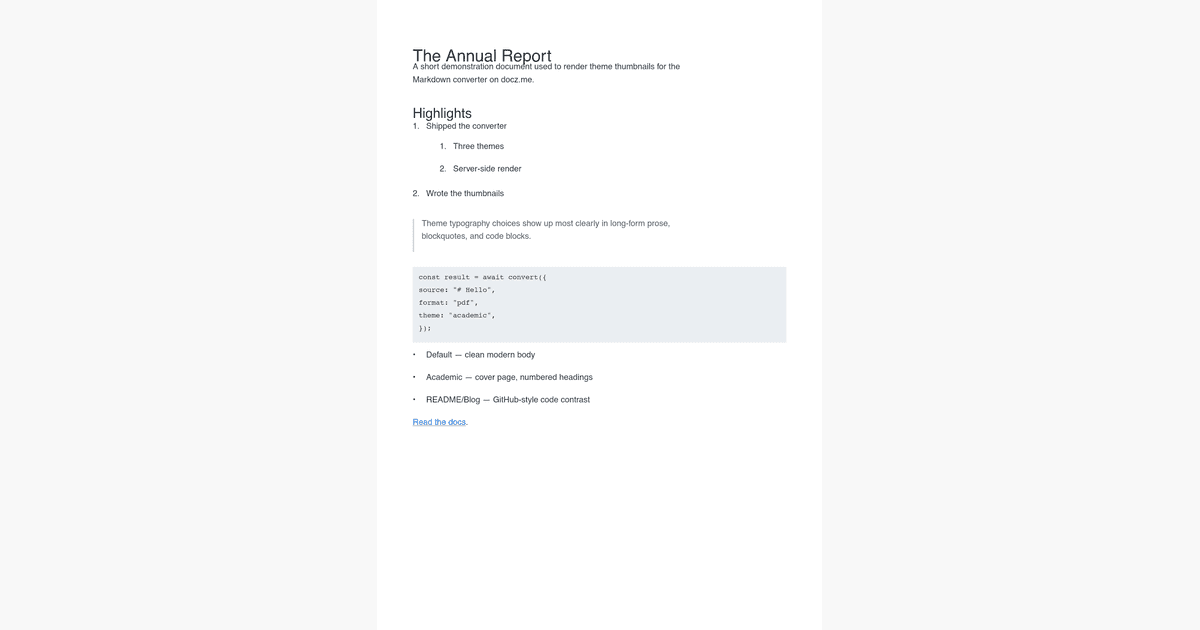
readme / blog
GitHub-flavored typography with higher-contrast code blocks, dotted-underline links, and tighter paragraph spacing. The right pick when you're exporting a README, a technical blog post, or a portfolio summary.
Frequently asked
Is the PDF text selectable and searchable?
Yes. The output is a real PDF rendered through pdfkit (via @react-pdf/renderer), not a screenshot. Text is selectable and full-text search works in any PDF reader.
What about page numbers and headers/footers?
Page numbers are not included in v1 to keep theme switching clean. The Academic theme adds a cover page; the rest start content on page 1. Custom headers/footers are slated for v1.1 if there's demand.
Are tables supported in PDF output?
GFM tables render as a styled fallback block in v1 (re-emitted as raw markdown text). DOCX gets full table layout. PDF table layout is on the roadmap once @react-pdf table primitives stabilise.
Can I use a custom font?
Not yet — themes use react-pdf's built-in fonts (Helvetica, Times-Roman, Courier) so output is consistent across servers. Custom font registration is a v1.1 candidate.
How big can my Markdown be?
500 KB of source text. Cold-start render for a 100-line markdown completes in under 8 seconds; warm requests are typically under one second.
Is markdown to PDF free?
Yes. The converter is free with no signup, no email gate, no watermark, and no upload cap below the 500 KB source limit. We monetise via the docz.me invoicing app, not this tool.
Can I convert markdown to PDF without internet?
No — this tool runs server-side via a public endpoint. For offline work the closest equivalents are Pandoc (cross-platform CLI) or a local VS Code extension. Bookmark the page if you need fast access on flaky connections.
What's the best markdown to PDF converter?
Depends on the constraint. Pandoc wins on advanced features and offline use; a local LaTeX pipeline wins on academic typesetting; this converter wins on zero-install, no-signup, multi-theme online conversion with selectable PDF text.
Does markdown support page breaks in PDF?
Plain markdown has no page-break syntax. Headings flow naturally and `@react-pdf` inserts breaks where content wouldn't fit. Explicit `<div style="page-break-before:always">` HTML-in-markdown is on the polish list — for now, lean on theme-driven heading flow.
Can I convert a GitHub README to PDF?
Yes. Paste the raw README contents (the Markdown source, not the rendered GitHub page) into the editor and pick PDF. README/Blog theme matches GitHub typography most closely; Academic adds a cover page if you need a portfolio export.
More converters
- Markdown Converter— Free online Markdown converter
- MDX Converter— MDX without the JS-execution risk
- Markdown to DOCX— Markdown → Word (.docx)
- Markdown to HTML— Markdown → HTML
- MDX to PDF— MDX → PDF
- MDX to DOCX— MDX → Word (.docx)
- MDX to HTML— MDX → HTML
Migrating off DoczJS? Read our DoczJS migration guide →