
Markdown → Word (.docx)
How to convert
Three steps. No signup, no email, no cloud locker.
- 1
Paste or upload
Drop your Markdown or MDX file into the editor, paste source directly, or click Upload to load a file from disk.
- 2
Choose format and theme
Pick PDF, DOCX (Word), or HTML as the output format. Optionally switch to Academic for a cover page or README/Blog for GitHub-style typography.
- 3
Convert and download
Click Convert & Download. The file streams back as a real binary — no signup, no email, no cloud locker. Your source is never stored.
Why this converter
Built for the docz.me invoicing app — released as a free standalone because the underlying pipeline turned out to be useful on its own.
Server-side rendering, real binaries
Output is a real PDF, real DOCX, or self-contained HTML — not a screenshot or rebadged HTML. Selectable text, embedded fonts, proper page breaks.
GFM and MDX in the same pipeline
Tables, task lists, footnotes, autolinks parse like GitHub. Switch to MDX input for Callout / CodeBlock / Tabs / Steps components — all rendered statically.
Three themes, one source
Default for clean modern docs, Academic with cover page and numbered headings, README/Blog for GitHub typography. Switch and re-render — keep your source.
Privacy first
Stateless serverless function. Source text is never logged or persisted. 500 KB cap enforced before parse so the worst case is a friendly error.
MDX without the JS-execution risk
Parse-only path. JSX expressions, ESM imports, and unknown components are rejected by design. No code from your source ever runs server-side.
No signup, no email gate
Free, anonymous, ungated. Built by docz.me — the invoicing app for freelancers — but the converter stands alone with no account requirement.
Most Markdown-to-Word tools quietly produce HTML and rename the extension. The result opens, but tables get mangled, list numbering resets between items, and the fonts don't match what your stakeholders expect. This converter uses the `docx` builder library to emit real OOXML — the same format Microsoft Word writes natively — so anything that opens .docx files (Word, Google Docs, LibreOffice, Pages) reads it cleanly.
Tables are the headline feature. GFM tables map to native Word tables, with header-row shading drawn from your selected theme. Numbering uses real numbering definitions, not text prefixes, so renumbering a list inside Word actually works. Code blocks ship as monospaced runs with light-grey shading, matching the visual treatment in our PDF output so a paired pair of files reads consistently.
Themes carry over: Academic adds a centered title page and date paragraph followed by a page break, README/Blog mimics GitHub typography, and Default is the clean baseline. Switch the theme, click convert, get a different document. Source markdown stays the source of truth — no theme-specific rewrites needed.
Edge cases the OOXML pipeline gets right
Nested lists nest. Word's numbering engine is finicky — drop the wrong attribute on a paragraph and the second-level item starts at 1 instead of 1.1. We register a single numbering definition per ordered list and walk depth via each paragraph's level property, so a five-deep agenda renders as 1, 1.1, 1.1.1, … without resetting. Bulleted lists alternate filled-circle and hollow-circle markers across depths for visual hierarchy.
Tables come through as native Word tables with theme-matched header shading and a hairline border. Open the .docx, click into a cell, edit — the layout holds. Inline code and fenced blocks both render as monospaced runs against a light-grey shading rectangle, matching the PDF treatment so the two formats look like siblings rather than estranged cousins. Blockquotes render as left-bordered paragraph runs with a slight indent.
Office 365, Google Docs, and LibreOffice round-trip the output without warnings. The OOXML we emit conforms to the relevant ISO/IEC 29500 transitional profile, which is what every modern Word-compatible reader expects. If you're handing the file to a finance or legal reviewer who lives in Word, the document arrives looking like one of theirs — the kind of detail that quietly raises the credibility of an otherwise plain-text-authored deliverable.
How it compares
Markdown to DOCX stacked against the alternatives most folks reach for. Honest framing — Pandoc and the platform tools are powerful in ways we're not.
| Feature | docz.me | Pandoc | Online converters | Word import .md plugin |
|---|---|---|---|---|
| Native Word tables | Yes — header shading + borders | Yes | Often HTML-renamed | Varies by plugin |
| Real numbering definitions | Yes — editable in Word | Yes | Often text prefixes | Varies |
| Theme support | 3 themes + cover page | Via reference.docx | None / one fixed look | Word template |
| Setup | None — paste & download | Install + reference.docx | Often signup / upload | Word license + plugin |
| Privacy | Stateless, source not logged | 100% local | Varies — read the ToS | 100% local |
Example source
Copy and run through the converter to see the output match the described behavior — every example below is a real fixture.
# Q3 Review

## Action items

| Owner | Task | Due |
| --- | --- | --- |
| Ana | Migrate billing | Oct 14 |
| Ben | Audit logs | Oct 21 |

1. Confirm scope with finance
2. Lock the Q4 plan
   1. Headcount
   2. Roadmap freeze

> Action items render as a real Word table; the nested list keeps its numbering.Honest comparison vs Pandoc
Pandoc is the reference implementation for document conversion. It is genuinely better than us at several things, and we are better at a few. Pick by what you actually need —Pandoc lives here ↗.
Where docz.me wins
- Zero install. Paste markdown, click convert, get a .docx that opens cleanly in Word, Docs, and LibreOffice — no reference.docx to author or maintain.
- Three themes ship out of the box including a cover page; Pandoc requires authoring a reference.docx for any non-default look.
- Free, anonymous, and stateless — no source logging, no upload limit beyond the 500 KB source cap, no signup or email gate.
Where Pandoc wins
- Pandoc supports footnotes, citations, and BibTeX out of the box; we ship footnote rendering on the polish list rather than in v1.
- Pandoc runs offline and integrates with CI / shell pipelines; this converter is online-only and aimed at one-shot conversions.
- Pandoc's reference.docx mechanism gives pixel-precise control over Word styles, fonts, and margins. Three themes plus a registry beat "none," but they don't match arbitrary corporate brand templates.
Theme showcase
Three opinionated themes drive every output format from the same source. Pick the one that matches the deliverable's audience.
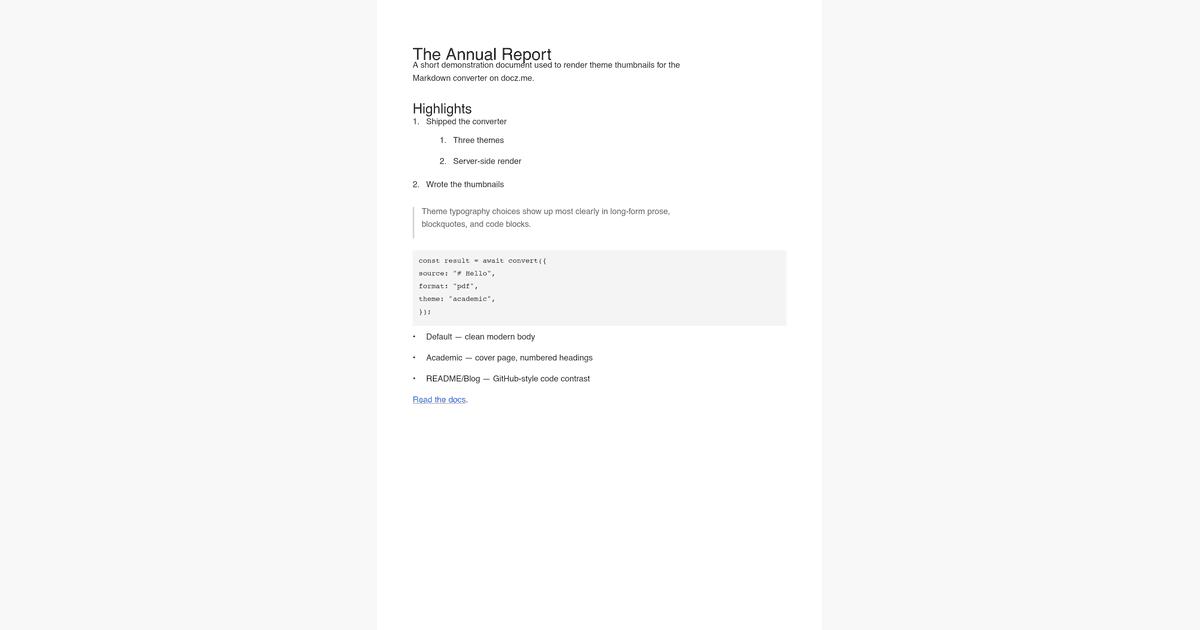
default
Calibri-equivalent body, dark headings, neutral table borders. The right pick for internal proposals, weekly reports, and freelance deliverables — looks like a competent Word document without making a stylistic statement.
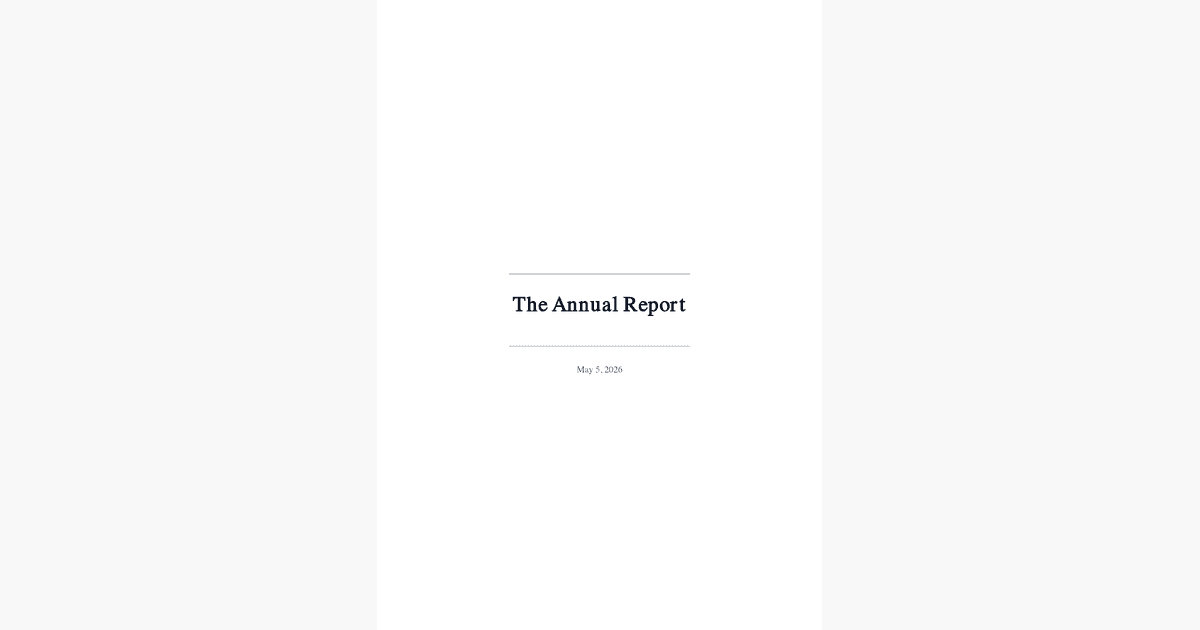
academic
Cover page with centered title and date, Times-Roman body, justified paragraphs, numbered headings. Matches the academic-paper conventions reviewers expect.
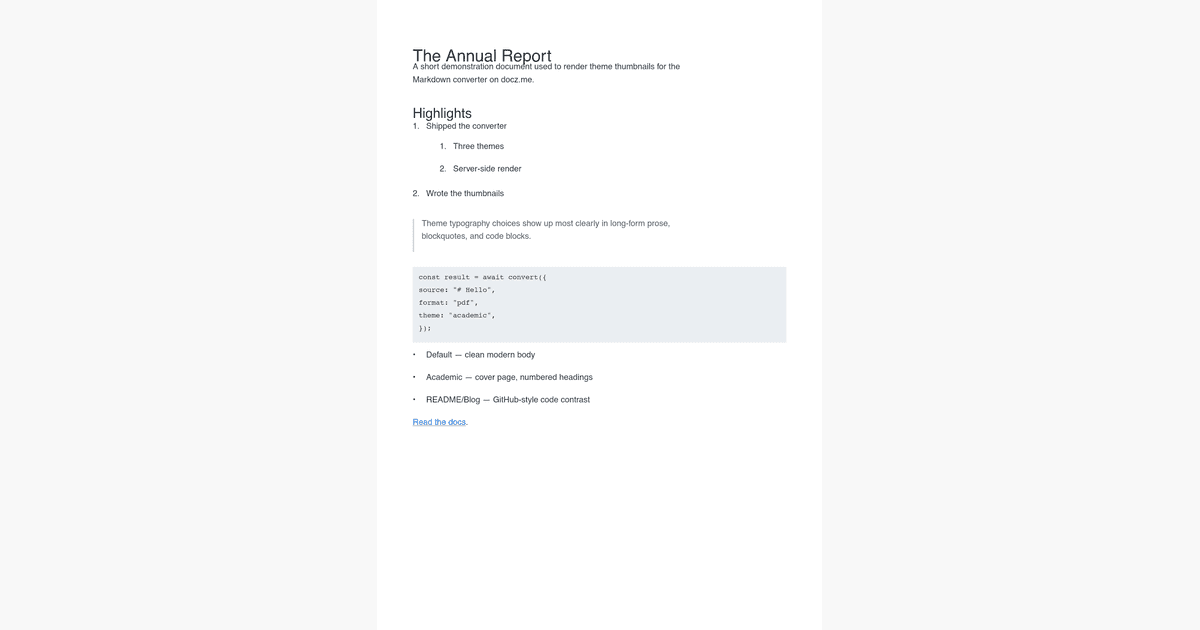
readme / blog
GitHub-style typography in Word form: high-contrast code blocks, generous heading scale, dotted underlines on inline code references. The right pick when the deliverable is a technical write-up.
Frequently asked
Will the .docx open in Microsoft Word?
Yes. The output is OOXML (the format Word writes), produced by the `docx` library. We test against Word 365, Google Docs, and LibreOffice; all three open the file without warnings.
Are GFM tables supported?
Fully supported. Tables render as native Word tables with header-row shading and your theme's border color. You can edit the table inside Word after import without any layout breakage.
What about images?
Images are rendered as a placeholder text run in v1 (`[Image: alt]`). Embedding the actual bytes requires fetching every image server-side then encoding into the DOCX zip — that's slated for a phase 5 polish pass.
Are lists really numbered or just text-prefixed?
Real numbering. We register an ordered numbering definition with the document, so renumbering inside Word works. Bulleted lists alternate marker styles by depth (• then ◦) for visual hierarchy.
Does the Academic theme cover work in Word?
Yes — the cover renders as centered paragraphs followed by a page break, so body content starts on page 2. Word's print preview matches the PDF output of the same theme.
Is markdown to Word free?
Yes. The DOCX export is free with no signup or watermark. The 500 KB source cap is enforced before parse to keep the worst case a friendly error rather than a stalled request.
Will the document open in Google Docs?
Yes. Upload the .docx via Google Drive's import flow; tables, numbering, and theme typography survive the round trip. Native fonts swap to the closest Google Docs equivalent if Helvetica / Times-Roman aren't already loaded.
Can I convert markdown to .doc (legacy Word)?
Output is .docx (OOXML). The legacy binary .doc format is unsupported — modern Word reads .docx natively, so the legacy fallback is rarely needed. Use Word's File → Save As if you specifically need .doc.
Do code blocks keep their syntax highlighting?
Code blocks render as monospaced runs with light-grey shading; syntax-token coloring is not applied in v1 (Word doesn't have a clean code-coloring primitive). Shiki-driven token coloring across DOCX is on the roadmap.
Can I add a custom logo to the cover page?
Not in v1. The Academic theme cover renders the document's first h1 plus a date paragraph. Custom cover assets (logo, author, abstract) are tracked as v1.1 polish items.
More converters
- Markdown Converter— Free online Markdown converter
- MDX Converter— MDX without the JS-execution risk
- Markdown to PDF— Markdown → PDF
- Markdown to HTML— Markdown → HTML
- MDX to PDF— MDX → PDF
- MDX to DOCX— MDX → Word (.docx)
- MDX to HTML— MDX → HTML
Migrating off DoczJS? Read our DoczJS migration guide →